F5 Application Connector Install Guide with Screenshots > F5 Application Connector Install Guide with Screenshots Index

1. Add Virtual Server for application access

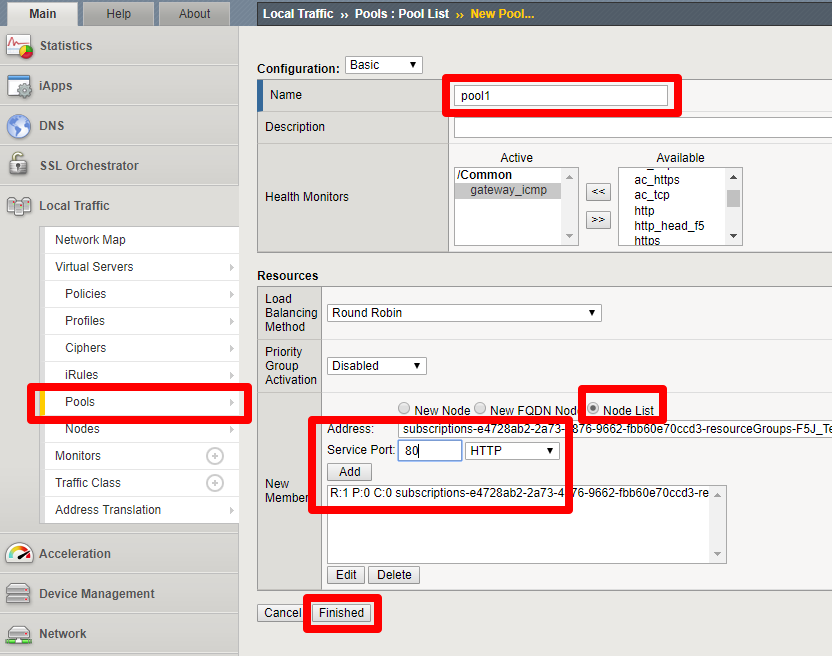
  1. Create a pool that contains the WordPress server created earlier.

    This node was auto discovered by the Application Connector proxy.

    task-1-1

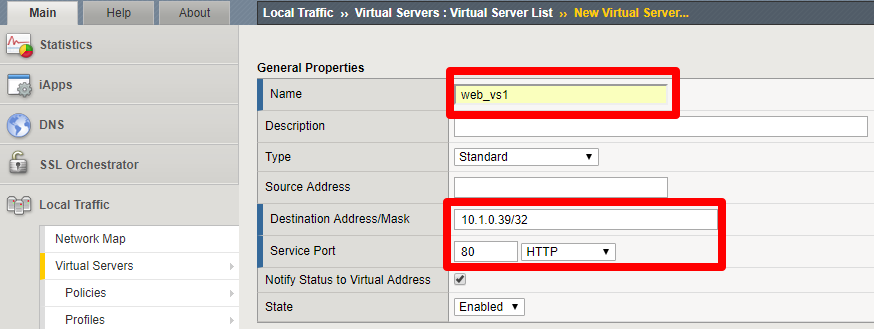
  2. Create a virtual server with an IP in the internal subnet.

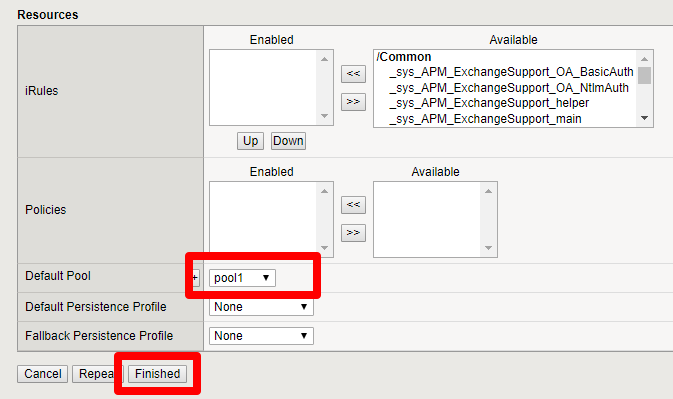
    This virtual server will process application traffic. Add the pool you just created.

    task-1-2

    task-1-3

    task-1-4

  3. Configure this virtual server IP as a secondary IP on the

    internal network interface in Azure.

    task-1-5

  4. Add the virtual server you just created in the Service Center.

    task-1-6

    task-1-7

    task-1-8

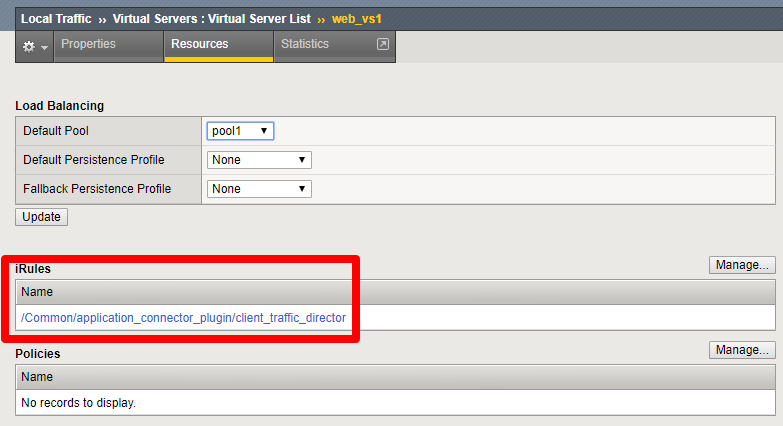
  5. Note the iRule that was applied to the virtual server.

    task-1-9