F5 Application Connector Install Guide with Screenshots > F5 Application Connector Install Guide with Screenshots Index

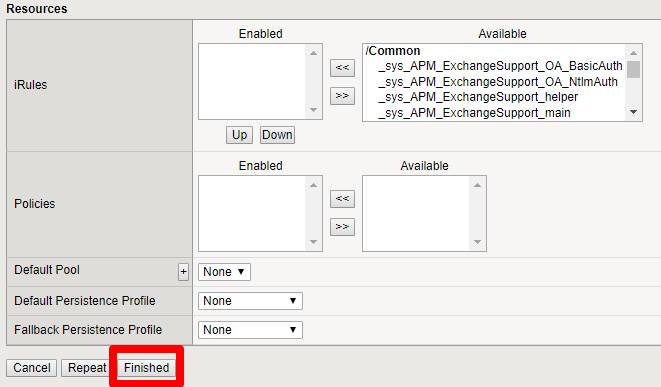
3. Create Virtual Server for Proxy Traffic on BIG-IP

The BIG-IP® system needs a virtual server that the Proxy can connect to.

  1. Create a Virtual Server like below.

    Note

    The Virtual Server IP would normally be a public IP that would float to the standby upon failover. By default, Azure does not support this functionality so we will use a static IP configured as a secondary IP on BIG-IP network interface.

    task-3-1

    task-3-2

    task-3-3

  2. Add the IP as a secondary IP in the external network interface.

    task-3-4

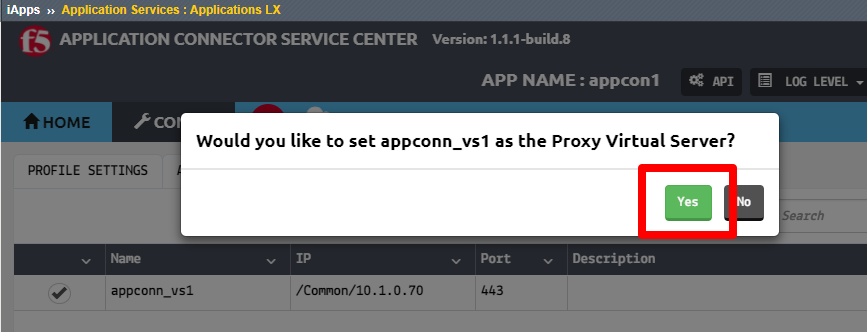
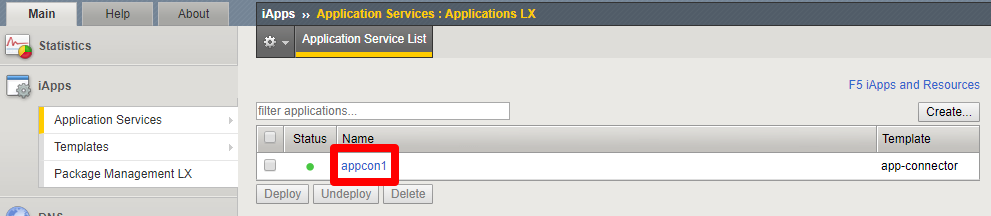
  3. Add the Virtual Server in the Service Center like below.

    task-3-5

    task-3-6

    task-3-7

    task-3-8

  4. Add the Virtual Server in the Proxy GUI like below.

    Note

    Ensure that you have network access to the Docker image port you specified in the “docker run” command. For instance, port 8090.

    task-3-9

    task-3-10

  5. Authorize the Proxy from the Service Center like below.

    task-3-11

    task-3-12

  6. Confirm in the Proxy that the connection is green and established.

    task-3-13

  7. Also note that the Node Discovery status is Authenticated.

    If it is not authenticated, check your azure_config.json file on the host.

    task-3-14

Application Connector is now configured for node auto discovery in Azure.